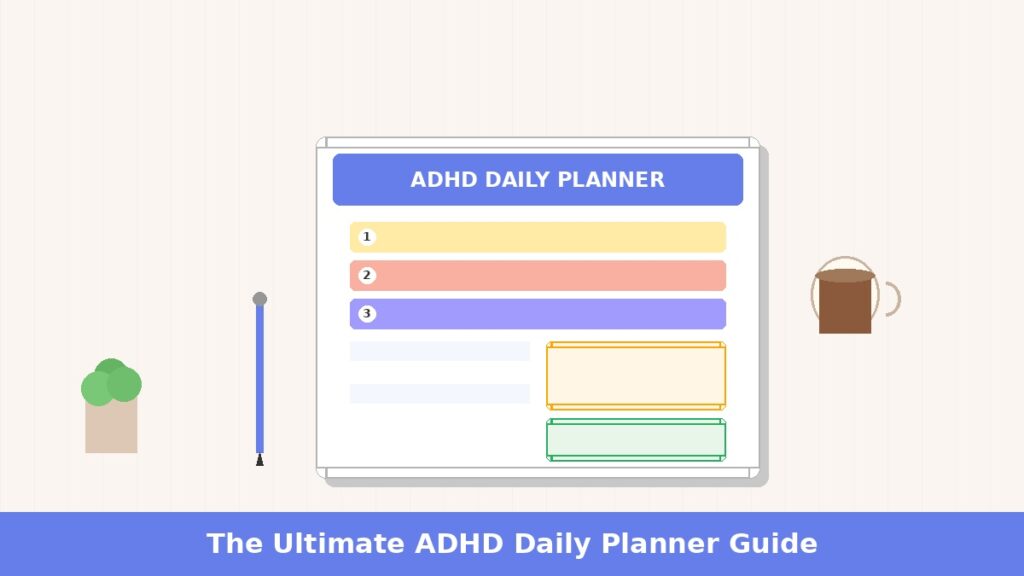
How to Use Digital Planners for ADHD Adults: The Complete Implementation Guide
Transform your iPad into your brain’s best friend with this step-by-step system
You bought the digital planner. Downloaded GoodNotes. Imported the perfect ADHD template.
And then… nothing.
Your iPad sits on the counter, the app unopened for three days. Your brain whispers that familiar lie: “See? You can’t stick to anything.”
Here’s the truth: Digital planners can revolutionize productivity for ADHD brains—but only when set up correctly.
This comprehensive guide walks you through exactly how to set up, customize, and actually use a digital planning system designed specifically for adult ADHD brains. No more abandoned apps. No more guilt. Just a system that finally works.
Why Digital Planners Actually Work Better for ADHD Brains
Before diving into the how, let’s understand the why. Digital planning isn’t just trendy—it’s specifically suited to ADHD executive function challenges.
The Notification Advantage
Object permanence struggles are real with ADHD. Out of sight truly means out of mind.
Digital planners solve this with built-in reminders that physically interrupt your day. Your phone already goes everywhere with you—now your planning system does too.
Unlimited Do-Overs (No Shame Required)
Make a mistake? Delete it. Want to reorganize your entire week? Copy and paste in seconds.
No messy cross-outs. No starting over with a fresh page. No shame about “ruining” your planner.
This eliminates perfectionism paralysis—a major ADHD productivity killer.
Hyperfocus-Friendly Infinite Pages
When hyperfocus strikes and you need twelve pages for a brain dump? Digital planners have unlimited space.
Duplicate your favorite templates endlessly. Create project-specific pages. Brain dump without restriction.
Search Functionality Saves Executive Function
“Where did I write that important note three weeks ago?”
With paper, you’re flipping through pages hoping to find it. With digital? Search takes two seconds.
This single feature saves countless executive function points daily.
Step-by-Step: Setting Up Your Digital ADHD Planning System
Setting up your digital planner correctly from day one prevents abandonment. Follow these steps exactly.
Step 1: Choose Your Platform (Don’t Overthink This)
The “best” app is the one you’ll actually open. Here’s what works for most ADHD adults:
GoodNotes (iPad/iPhone): Most popular for digital planning. Unlimited notebooks, easy PDF import, realistic handwriting feel.
Notability (iPad/iPhone): Great for audio recording meetings alongside notes. Syncs across devices seamlessly.
OneNote (All Devices): Free option that works on iPad, Android, PC, Mac. Less “planner-like” but incredibly flexible.
Noteshelf (iPad): Beautiful interface with excellent organization features.
Decision paralysis kicking in? Start with GoodNotes. You can always switch later.
Step 2: Import an ADHD-Specific Template
Generic templates won’t work. You need planners specifically designed for ADHD executive function.
Look for templates featuring:
- Top 3 priorities (not overwhelming to-do lists)
- Brain dump sections for intrusive thoughts
- Flexible time blocking areas
- Simple habit trackers (5-7 habits max)
- Energy/mood tracking
- Evening reflection prompts
Step 3: Customize Your Notification System
This is where digital planning becomes truly ADHD-friendly. Set up three types of reminders:
Morning Planning Alert (8:00 AM): “Time to set your Top 3 for today”
Midday Check-In (1:00 PM): “How’s your energy? Adjust your afternoon plans”
Evening Reflection (8:00 PM): “Celebrate your wins and prep tomorrow”
Use your phone’s native reminder app or calendar. Don’t overthink this—simple reminders work best.
Step 4: Set Up Your Home Screen for Easy Access
Object permanence hack: Make your planner impossible to forget.
On your iPad/iPhone:
- Move your planner app to the first home screen
- Add a widget showing today’s page
- Remove distracting apps from that screen
- Set your planner as a suggested app in Spotlight
Step 5: Create Your First Week’s Pages (Not the Whole Year)
Here’s where most people fail: They spend three hours setting up pages for the next six months.
Don’t do that.
Set up ONE WEEK ONLY. Monday through Sunday. That’s it.
Why? Because you don’t know if this system will work yet. And if you spend hours on setup, abandoning it feels like failure.
Start small. Prove it works. Then expand.
Your Daily Digital Planning Routine (10 Minutes Total)
A planning system only works if you can sustain it. Here’s your ridiculously simple daily routine:
Morning Planning (5 Minutes)
When your 8 AM reminder goes off:
1. Open your planner to today’s page
2. Write your Top 3 priorities (not 10, not 5—exactly 3)
3. Add rough time blocks for when you’ll tackle them
4. Check your habits checkboxes as you do them
5. Close the app and start your day
That’s it. Five minutes. No elaborate planning sessions.
Throughout the Day: The Brain Dump Strategy
Random thought pops up? (“I need to call the dentist” while working on something completely unrelated?)
Don’t let it derail you. Don’t try to hold it in your brain. Don’t immediately act on it.
Open your planner. Tap to the brain dump section. Write it down. Close the planner. Resume your task.
Entire process: 20 seconds.
This single habit will transform your ability to maintain focus.
Evening Reflection (5 Minutes)
When your 8 PM reminder goes off:
1. Mark your energy level for the day (1-5 scale)
2. Write one win (even if it’s “I showered”—that counts)
3. Note three things you’re grateful for (fights ADHD negativity bias)
4. Write tomorrow’s Top 3 while it’s fresh in your mind
5. Review your brain dump and schedule anything urgent
Five minutes. Done.
Advanced Digital Planning Features for ADHD
Once you’ve mastered the basics (give it 2-3 weeks), level up with these advanced features:
Hyperlinks for Seamless Navigation
Create internal links between related pages. Working on a project? Link from your daily page to your project planning page.
No more flipping through endless pages trying to find information.
Color-Coded Organization System
Use highlighters strategically:
- Yellow – Time-sensitive deadlines
- Green – Completed tasks
- Blue – Important but not urgent
- Red – High priority/urgent
Consistent color coding creates visual cues your ADHD brain recognizes instantly.
Template Duplication for Recurring Needs
Create templates for recurring activities:
- Weekly meal planning page
- Project kickoff template
- Meeting notes format
- Monthly review spread
Duplicate them instantly instead of recreating from scratch each time.
Voice-to-Text for Brain Dump Speed
When thoughts flood your brain faster than you can type, use voice-to-text.
Most planning apps support dictation. Speak your brain dump, let the app transcribe, organize later.
7 Digital Planning Mistakes That Kill ADHD Productivity
Mistake #1: Making It Too Pretty
Instagram-worthy spreads look amazing. They’re also exhausting to maintain.
Your planner isn’t an art project. It’s a tool. Function beats aesthetics every single time.
The Fix: Keep it simple. Basic text, simple icons, minimal decorating.
Mistake #2: Not Using Reminders
You download a digital planner but never set up notifications.
Then you wonder why you forget to check it. The whole point of digital is the reminder system.
The Fix: Set three non-negotiable daily reminders immediately.
Mistake #3: Trying to Plan Everything
You schedule every 15-minute block for the next month.
Then life happens, everything shifts, and your meticulously planned system crumbles.
The Fix: Plan only your Top 3. Time block loosely. Leave white space for flexibility.
Mistake #4: Abandoning It After One Bad Day
You miss one day of planning and declare the whole system failed.
ADHD thrives on black-and-white thinking, but planning isn’t all-or-nothing.
The Fix: Expect inconsistency. Using it 60% of the time is infinitely better than 0%.
Mistake #5: Keeping the App Buried in Folders
If your planner takes four taps to access, you won’t access it.
The Fix: Home screen. First page. Maybe even the dock. Make it unavoidable.
Mistake #6: Not Customizing for Your ADHD
You use a template exactly as-is, even though half the sections don’t work for you.
The Fix: Delete sections you don’t use. Add ones you need. It’s digital—customize ruthlessly.
Mistake #7: Treating It Like a Paper Planner
You import a digital planner but use it exactly like paper—no search, no duplication, no notifications.
Why go digital if you’re not using digital features?
The Fix: Leverage the technology. Duplicate pages. Use search. Set reminders. That’s the whole point.
Troubleshooting: When Digital Planning Stops Working
Problem: You Keep Forgetting to Check Your Planner
Solution: Your reminders aren’t assertive enough.
Change notification settings to “persistent”—they stay on screen until you acknowledge them. Use alarm sounds, not just badges.
Problem: Opening the App Feels Overwhelming
Solution: Your template is too complex.
Strip it down to essentials: Top 3, time blocks, brain dump, habits. That’s it. Delete everything else.
Problem: Digital Feels Less “Real” Than Paper
Solution: Use an Apple Pencil or stylus.
Handwriting on screen provides that tactile satisfaction while keeping all digital advantages.
Problem: Too Many Apps and Systems Overwhelming You
Solution: Consolidate ruthlessly.
One planning app. One calendar app. One note-taking app. Maximum. More than that fragments your attention.
Integrating Your Digital Planner with Other ADHD Tools
Your planner works best when it’s part of a larger ADHD management ecosystem.
Calendar App Syncing
Use your planner for daily tasks and priorities. Use your calendar for time-specific appointments.
Many apps like GoodNotes and Notability display your calendar events directly in the planner.
Task Management Apps
For project management, consider pairing your planner with Todoist, Things, or TickTick.
Your planner = daily Top 3 and brain dumps. Task app = comprehensive project tracking.
Time-Blocking Apps
Apps like Structured or Tiimo work beautifully alongside digital planners.
Plan in your planner. Schedule specific time blocks in Structured. Get notifications when it’s time to switch tasks.
Not Sure Where to Start?
Our comprehensive guide helps you choose the perfect ADHD planner for your specific needs
📖 Read the Complete Planner Selection GuideReal Results: How Digital Planning Transforms ADHD Lives
“I’ve abandoned every planner I’ve ever bought. But digital planning actually stuck. The reminders make it impossible to forget, and I can finally track my brain dumps without carrying a notebook everywhere.”
– Sarah, Marketing Manager with ADHD
“The search function alone was worth going digital. I used to lose crucial notes in paper planners. Now I just search and find them instantly.”
– Marcus, Software Developer
“I was skeptical about digital planning, but the ability to duplicate pages and undo mistakes changed everything. No more shame about ‘ruining’ my planner.”
– Jessica, Freelance Designer
Your Digital Planning Journey Starts Now
Digital planners aren’t magic. They won’t cure ADHD or eliminate all productivity struggles.
But they can:
- Reduce the mental load of remembering everything
- Provide structure without rigidity
- Capture intrusive thoughts before they derail your day
- Build self-awareness about your energy patterns
- Create sustainable habits through gentle reminders
The key is starting simple and building gradually.
Don’t try to plan perfectly. Just plan consistently.
Your first week action plan:
- Choose your app (GoodNotes is a safe bet)
- Import an ADHD-specific template
- Set up three daily reminders
- Plan ONE WEEK only
- Focus solely on Top 3 priorities each day
- Track your wins (however small)
- Adjust and refine next week
You don’t need to be perfect. You just need to start.
Your ADHD brain isn’t broken. It just needs the right tools. 🧠✨
Frequently Asked Questions
What’s the best digital planner app for ADHD adults?
GoodNotes and Notability are the most popular choices for iPad users due to their intuitive interfaces, unlimited page duplication, and seamless PDF import. OneNote works well for those on multiple platforms or budget constraints. The best app is ultimately the one you’ll consistently open, so try a few before committing.
Do I need an iPad for digital planning with ADHD?
While iPads offer the best digital planning experience with Apple Pencil support, they’re not mandatory. Android tablets, Microsoft Surface devices, or even your smartphone can work for digital planning. The key features you need are a note-taking app, PDF support, and reminder capabilities—all available across platforms.
How do I stop abandoning my digital planner after a few days?
Start with just three elements: Top 3 priorities, brain dump space, and daily reminders. Don’t try to plan everything at once. Set non-negotiable notification reminders for morning planning and evening reflection. Keep your planner app on your home screen where you can’t miss it. Remember that using it 50% of the time is infinitely better than 0%.
Is digital or paper planning better for ADHD?
Digital planning offers unique advantages for ADHD brains: searchable content, unlimited pages, notification reminders that combat object permanence issues, and easy mistake correction. However, some people find the tactile experience of paper more satisfying. Many successful ADHD planners use a hybrid approach—digital for scheduling and reminders, paper for daily Top 3 priorities.
What features should an ADHD digital planner include?
Essential features include: simplified Top 3 priority system (not overwhelming to-do lists), dedicated brain dump sections for intrusive thoughts, flexible time blocking, simple habit tracking (5-7 habits maximum), energy and mood tracking, evening reflection prompts, and visual engagement through color-coding. Avoid complex layouts that trigger decision paralysis.
How long does it take to build a digital planning habit with ADHD?
Expect 3-4 weeks to establish basic consistency, though this varies significantly among individuals with ADHD. Focus on starting ridiculously small—just writing your Top 3 priorities for the first week. Gradually add features like time blocking and habit tracking. The key is building momentum through small, achievable wins rather than trying to master everything immediately.
Can I use free apps for ADHD digital planning?
Absolutely! OneNote is completely free and works across all devices. While paid apps like GoodNotes ($9.99) and Notability ($14.99) offer more planning-specific features, free alternatives work perfectly well. What matters more than the app cost is choosing an ADHD-friendly template and setting up consistent reminder systems.
How do I handle digital distractions when planning on my device?
Enable Focus Mode or Do Not Disturb while planning. Remove social media apps from your home screen. Use app blockers during planning time if needed. Consider creating a dedicated “Planning” shortcut that opens your planner and activates Do Not Disturb simultaneously. The goal is making your planner the path of least resistance while blocking distracting alternatives.